Wall of text
Make wall-of-text videos easy to read
In a wall-of-text video, the caption carries most of the meaning. The background creates a setting or feeling, but the viewer still needs to read the thought from beginning to end. Draft the words first, then choose the visual treatment around them.
Choose one observation with a clear ending
Start with a specific moment, habit, or realization. A short paragraph can contain a setup and a payoff, but it becomes hard to follow when it switches between several subjects. Write the point in plain language before adding a conversational voice.
Read the ending separately. Does it finish the thought you opened with, or does it introduce another idea? If the ending is really a second post, save it. The goal is a complete thought that fits on screen, not a compressed essay.
The real generated draft below tries to explain launch excitement, payment frustration, the product and a call to action at once. It is useful as an editing example because the background works, but the copy asks the viewer to hold too many ideas before reaching the ending.

Use the background to establish the situation
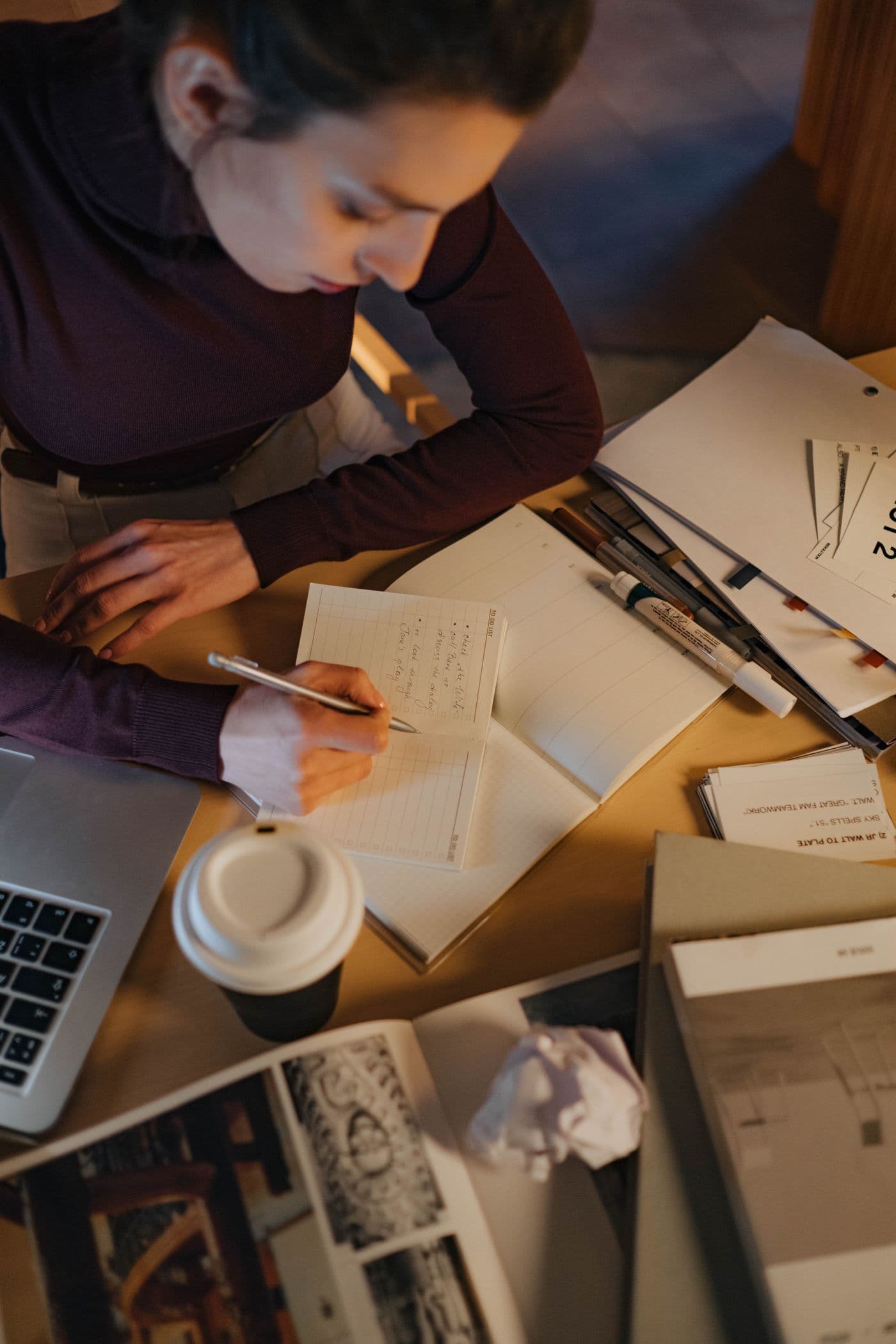
Choose a clip that fits the caption’s tone and activity. A quiet work scene may fit an observation about planning; walking footage may suit a reflective thought. Look for a usable area for the text throughout the clip, since the background can change after the first frame.
In Studio, select Wall of text, choose an inspiration or write a prompt, and generate a draft. Read the adapted copy before adjusting fonts. Remove details that do not match your business or that make the sentence sound unlike something you would actually say.
Edit the words before shrinking the font
When the text feels crowded, look for repeated phrases, unnecessary introductions, and two sentences doing the same job. Shortening those parts can create space without changing the idea. If every word is necessary, consider whether a slideshow would give the explanation more room.
Use the editor to adjust size, alignment, position, and text style. Preview the whole clip to check contrast as the background moves. Keep the caption inside the frame with space around its edges, then check it at a smaller viewing size rather than relying only on a large desktop preview.
- Underline the one sentence that contains the actual observation.
- Remove feature lists, calls to action and repeated setup from the overlay.
- Break the remaining copy into short lines at natural phrase boundaries.
- Preview every frame where the background changes brightness behind the text.
Give the reader enough time
Play the video and read the caption at a comfortable pace without pausing. Ask someone unfamiliar with the draft to try the same. If the video ends before they finish, shorten the text or adjust the timing where the editor allows it. There is no single duration that fits every caption.
After exporting, open the downloaded video. Check the final line, the text outline, the audio, and the start and end of playback. Keep a copy of the wording with the project so your next variation can explore a different observation instead of repeating the same thought with a new background.